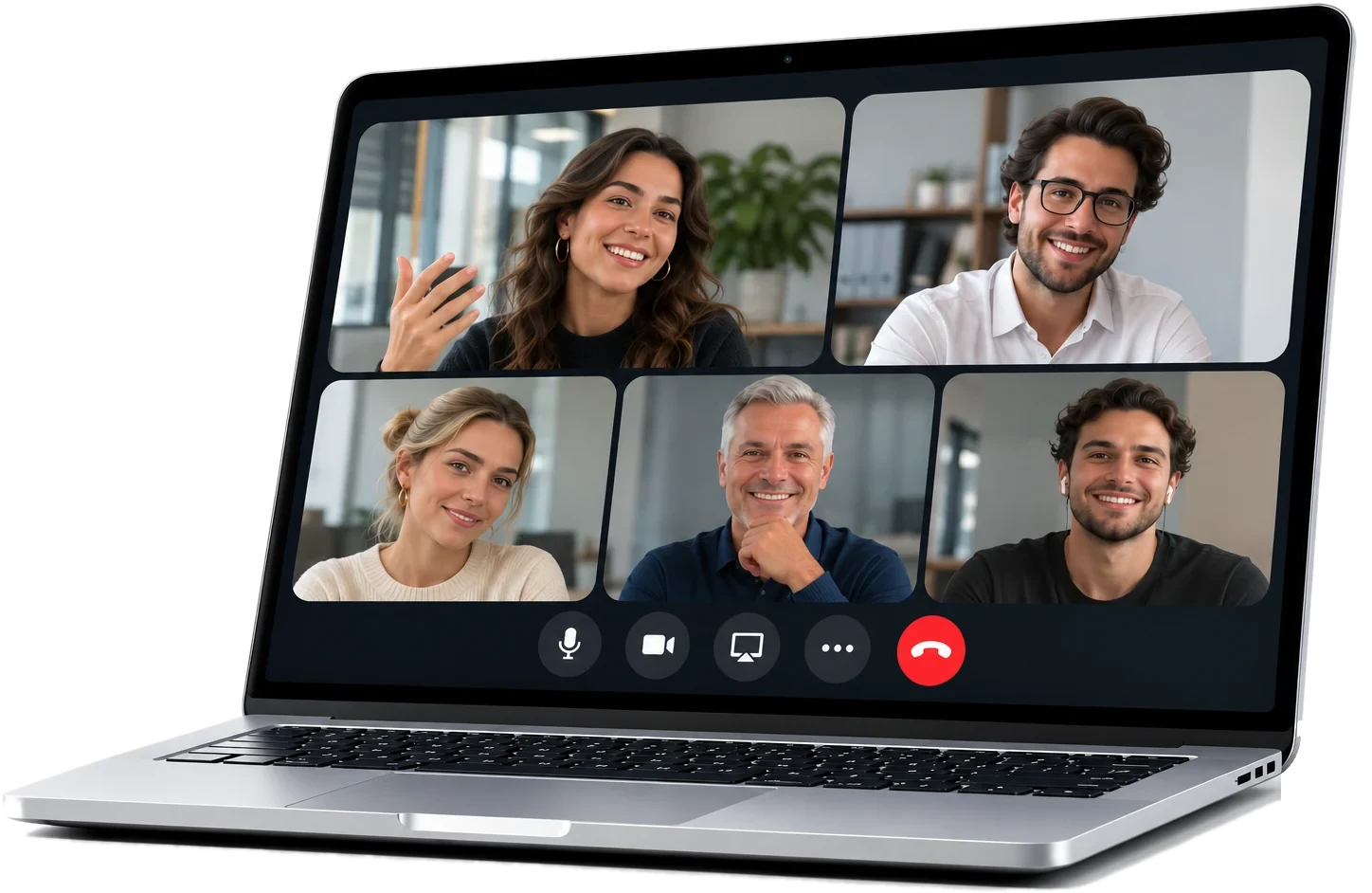

The best of a meeting, as video, for anyone who missed it
Select part of the text and Echo creates the clip with its video or audio and a link to share it. It also suggests the best moments and puts several together in a single video.
From the text
Select what was said and click “Clip”: no video editing needed.
Ready for social
Landscape, square or vertical, with animated subtitles and your logo.
A link you control
Password, expiry, downloads, comments and how many times it’s been watched.
A clip in two clicks
The clip comes from the transcript, so it starts and ends exactly where you want.
- Select the text in the editor and click “Clip”.
- Listen to it and move the start or end second by second.
- Or let Echo suggest the meeting’s highlights.
- Remove filler words and long silences from the clip with one option.
In your brand’s look
Made to share outside the team.
- Landscape, square or vertical for social media, even if the meeting was audio only.
- Animated subtitles that highlight the word being spoken.
- Your brand’s colour and logo, for your personal space or the whole workspace.
Reels
Several moments from different meetings, in a single video.
- In Clips, select several and create a reel, with a caption for each moment.
- Create a reel of every time a topic came up: pricing, a competitor, a complaint.
- Each reel keeps the text of its moments.
Share with control
Every clip and reel has its own public link, no account needed.
- Add a password or an expiry date, and decide whether it can be downloaded.
- Viewers can leave comments and reactions, and you see how many times it’s been watched.
- Add a button with your own link or embed it on your website.
- Send it to your Slack from Echo.
How to use it
- 1
Pick the moment
In the meeting, select the text and click “Clip”, or open the Clips tab to see the suggestions.
- 2
Shape it
Choose the format and whether you want animated subtitles, and adjust the start and end.
- 3
Share the link
Copy the clip’s link and, if you like, add a password or an expiry date.
- 4
Put several together
In Clips, select the ones you want and click “New reel”.
Frequently asked questions
Do I need to know how to edit video?
No. The clip comes from the text you select. Echo cuts the video or audio, frames it and adds the subtitles.
Does it work with audio-only meetings?
Yes. In square or vertical format you get a video with a background, title and subtitles. In landscape, a clip from audio stays as audio.
Who can see a clip?
Anyone with its link, no account needed. You can protect it with a password, add an expiry date or turn off downloads, and in a team workspace the policies can require it.
Who can create clips?
Anyone who can edit the meeting. In a team workspace, everyone’s clips appear together on the Clips page.
Try it with your next meeting.
Create your account in a minute or ask us for a demo for your team.