




An assistant that records your meetings for you
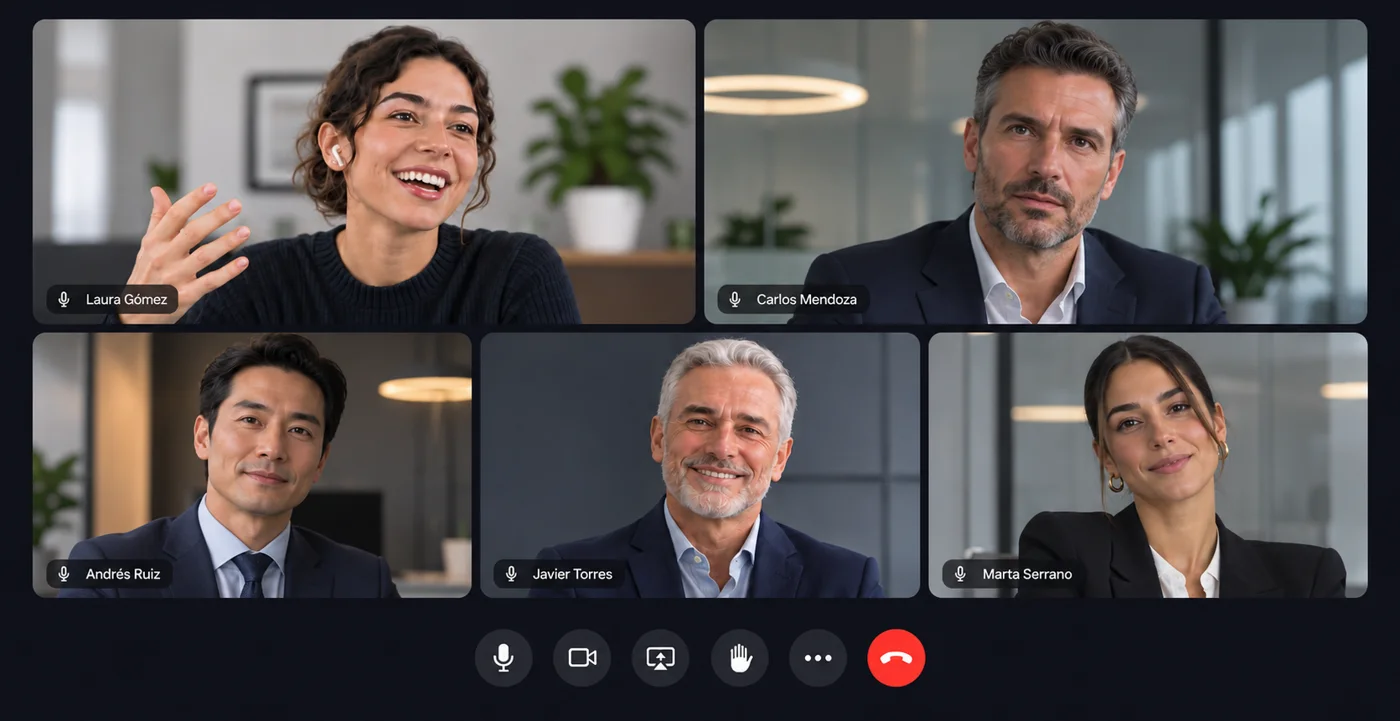
Echo joins your Microsoft Teams meetings, lets everyone know it’s recording and leaves by itself when they end. For Meet, Zoom or anything you’ve already recorded, use the Chrome extension, transcribe live or upload the file.
Joins by itself
Connect your Outlook calendar and the assistant joins the Teams meetings you choose.
Says it’s recording
It posts in the meeting chat and its camera shows “This meeting is being recorded”.
Any meeting
Meet, Zoom and Teams in the browser with the Chrome extension, or by uploading the recording.
The assistant in Microsoft Teams
Paste the meeting link or pick it from your calendar, and Echo takes care of the rest.
- It joins as a guest, waits in the lobby if needed and leaves when the meeting ends or it’s left alone.
- You can change its name and welcome message, and put your logo on its camera.
- While it records, write your notes on its card and ask it what’s been decided so far.
- When it ends you have the transcript with who said what, the summary and the tasks.
From your Outlook calendar
Decide once which meetings it joins and forget about it.
- All your meetings, only the ones you organise, only those with guests from another company or by words in the title.
- You can tell it not to join a particular meeting.
- If you turn it on, about 15 minutes before you get a briefing with what was discussed in earlier meetings and the open tasks.
- Afterwards, if you turn it on, guests get a follow-up email with the decisions and next steps.
Chrome extension for Meet, Zoom and Teams
For meetings you hold in the browser, including the ones the assistant can’t join.
- It records the sound of the Google Meet, Zoom or Teams meeting tab.
- You see the text live in the side panel as people speak.
- When it ends, the recording is uploaded to your account and transcribed in full.
Live, screen recording or uploading the file
Not every meeting is a video call. Echo also works with what happens in the room or what you’ve already recorded.
- Live: your microphone and, if you like, the sound from another tab, with the text as people speak, markers and notes.
- Record your screen, your camera or both, and share the link straight away.
- Upload audio or video up to 2 GB, up to 20 files at once.
- Paste a YouTube, Google Drive or other web link and Echo downloads and transcribes it.
How to use it
- 1
Connect your calendar
In Settings, Calendar, connect Outlook and choose whether the assistant joins all your meetings or only the ones you organise.
- 2
Or send it to a meeting
In Meetings, paste the Teams meeting link and click “Send Echo”.
- 3
Let it record
The assistant posts in the chat that the meeting is being recorded and leaves by itself when it ends.
- 4
Review what’s left
The meeting shows up in Files with the transcript, summary and tasks, and we let you know by email.
Frequently asked questions
Does the assistant join Google Meet or Zoom?
For now the assistant only joins Microsoft Teams. You can record Meet and Zoom meetings with the Chrome extension, if you hold them in the browser, or upload the recording afterwards.
Do the others know they’re being recorded?
Yes. The assistant always posts in the chat that the meeting is being recorded and, with its camera on, shows “This meeting is being recorded”. Even so, tell the people taking part before you start.
Which plan do I need?
The assistant that joins meetings is part of the Pro plan (or Team). Uploading files, live transcription and screen recording are on every plan, within its hours.
Which calendar can I connect?
Outlook or Microsoft 365. With it, the assistant can join your Teams meetings by itself and you can get a briefing before each one.
Where are the recordings stored?
On Edorteam’s servers in the European Union. Transcription and AI run on those same servers: your meetings aren’t sent to other companies or used to train models.
Try it with your next meeting.
Create your account in a minute or ask us for a demo for your team.